
Your first release
In this tutorial you upload the SBOM of one build, see which known vulnerabilities Affectra finds in it, and record your decision on one of them as a VEX statement. It takes about 15 minutes. Most of that is the first matching run, when Affectra loads vulnerability data it does not have yet.
You need:
- an Affectra account with the member role or higher, and the address of your instance. The app address is the one you sign in at;
- a terminal with
curl7.76 or later andjq; - an SBOM of one of your builds, in CycloneDX or SPDX. Use your own: findings are only interesting when they are about your software. If you have none yet, Supported SBOM formats lists what Affectra reads, and tools such as Syft write one from a directory or a container image. Name the file
sbom.cdx.json, or change the name in the commands below.
Create an API key
Section titled “Create an API key”The key lets curl act for your organization. In the app:
- Open API keys under Organization. If you do not see it, you are not an admin. Ask one to create the key.
- Under Create a key, enter a Name, for example First release.
- Set Access to Can propose changes. A Read only key cannot upload.
- Select Create key, then Copy. The key is shown once.
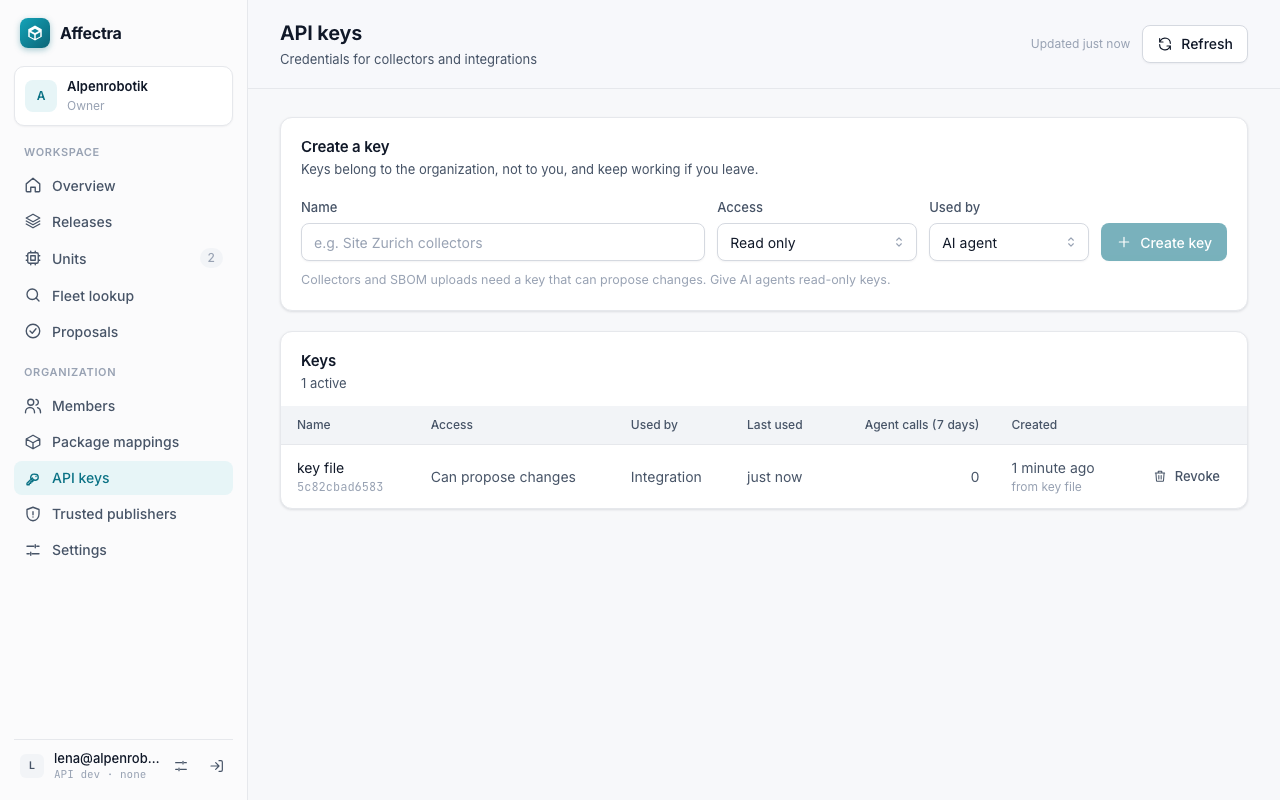
API keys explains the access levels and how to revoke a key.
Put the key and the addresses into the environment of your terminal. Replace the values with yours. The organization is the slug in the address of the app. The key below is made up:
export AFFECTRA_URL=https://affectra.example.comexport AFFECTRA_ORG=acmeexport AFFECTRA_API_KEY=exk_example_not_a_real_keyUse the API address of your instance for AFFECTRA_URL. Using the API says which one that is. --fail-with-body in the commands makes curl stop with an error on any HTTP error status, and still print Affectra’s answer, which says why.
Upload an SBOM
Section titled “Upload an SBOM”Run the commands in the order below, in the directory with sbom.cdx.json. Under each command is the HTTP status that Affectra answers with. To see the status in your terminal, add --include to the command.
1. Check the key
Read the products of your organization. A 200 means the address, the organization and the key are right. A new organization has an empty list.
curl --fail-with-body --silent --show-error \
  --header "Authorization: Bearer $AFFECTRA_API_KEY" \
  "$AFFECTRA_URL/v1/orgs/$AFFECTRA_ORG/products"
Status: 200
2. Upload the SBOM
Send the file as the body of one request. The product and the release do not exist yet, so Affectra creates them. The answer is 201 the first time. If you run the step again with the same file, it is 200 and nothing changes.
curl --fail-with-body --silent --show-error \
  --request POST \
  --header "Authorization: Bearer $AFFECTRA_API_KEY" \
  --header "Content-Type: application/octet-stream" \
  --data-binary @sbom.cdx.json \
  "$AFFECTRA_URL/v1/orgs/$AFFECTRA_ORG/sbom-uploads?product=Quickstart%20Gateway&version=1.0.0" \
  > answer.json
release=$(jq --raw-output '.release.id' answer.json)
Status: 201 or 200
3. Check the release
List the SBOMs of the release. It holds the file you sent.
curl --fail-with-body --silent --show-error \
  --header "Authorization: Bearer $AFFECTRA_API_KEY" \
  "$AFFECTRA_URL/v1/orgs/$AFFECTRA_ORG/releases/$release/sboms"
Status: 200
4. Read the findings
List the findings of the release. Affectra matches the components in the background, so the list can be empty at first. Run the step again after a minute. On a new installation the first run can take longer, because Affectra first loads the vulnerability data.
curl --fail-with-body --silent --show-error \
  --header "Authorization: Bearer $AFFECTRA_API_KEY" \
  "$AFFECTRA_URL/v1/orgs/$AFFECTRA_ORG/releases/$release/vulnerabilities"
Status: 200
Steps 1 to 3 answer at once. The answer of the upload names the release that Affectra created for Quickstart Gateway version 1.0.0. Upload SBOMs from other CI explains every part of the request, including how to name a variant and what the warnings in the answer mean. To put the next build into the same product, upload with a new version.
Find the release in the app
Section titled “Find the release in the app”- Open Releases. The product Quickstart Gateway is in the list.
- Select the release 1.0.0.
- The Vulnerabilities tab shows the findings. The line above the list says how current they are. If it says that components are still waiting to be matched, wait a minute and reload the page.
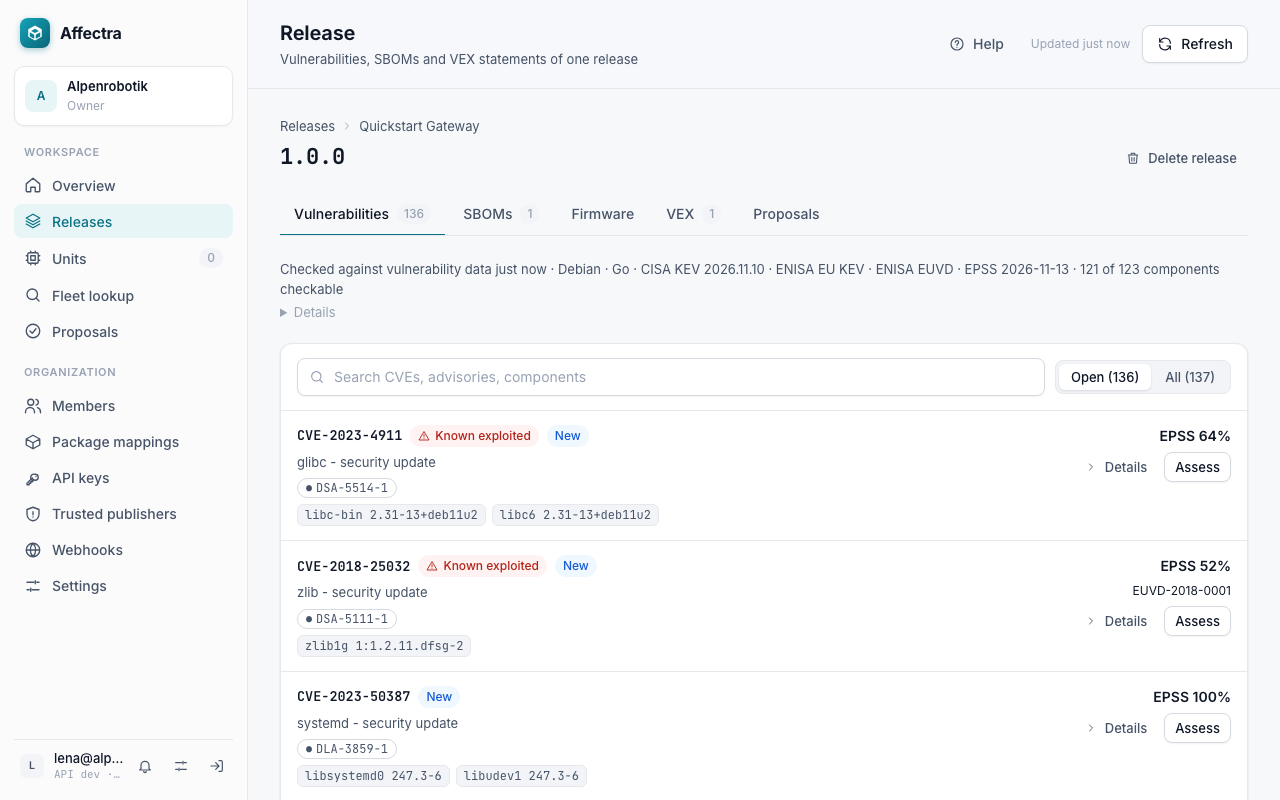
Findings are ordered with the known exploited ones first, then by CVSS score, then by EPSS. Each row is one CVE, however many advisories report it. The chips under the title are those advisories. Assess findings with VEX says what each marker on a finding means.
Record a VEX statement
Section titled “Record a VEX statement”A statement is your decision about one finding on this release. Pick a finding you can judge, for example one in a component that your product includes but never runs.
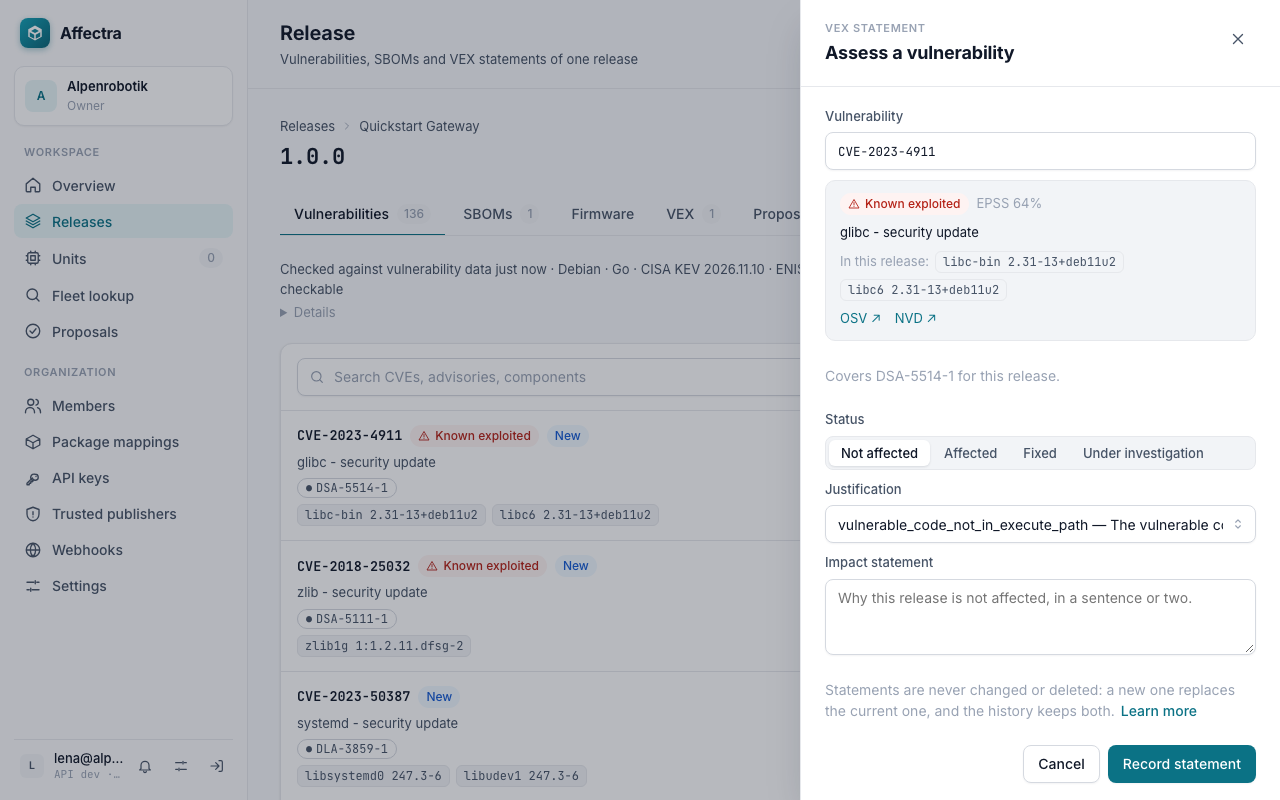
- On the finding, select Assess. The panel Assess a vulnerability opens.
- Choose a Status. For a vulnerable component that your product cannot reach, choose Not affected.
- Choose a Justification from the list, for example
vulnerable_code_not_in_execute_path(The vulnerable code is never run), or write an Impact statement that explains. Not affected needs one of the two. - Select Record statement.
The statement is on the CVE, so the whole row is resolved now and drops out of the list of open findings. Select All above the list to see it again. Open the VEX tab of the release: the statement is there, with your name and the time.
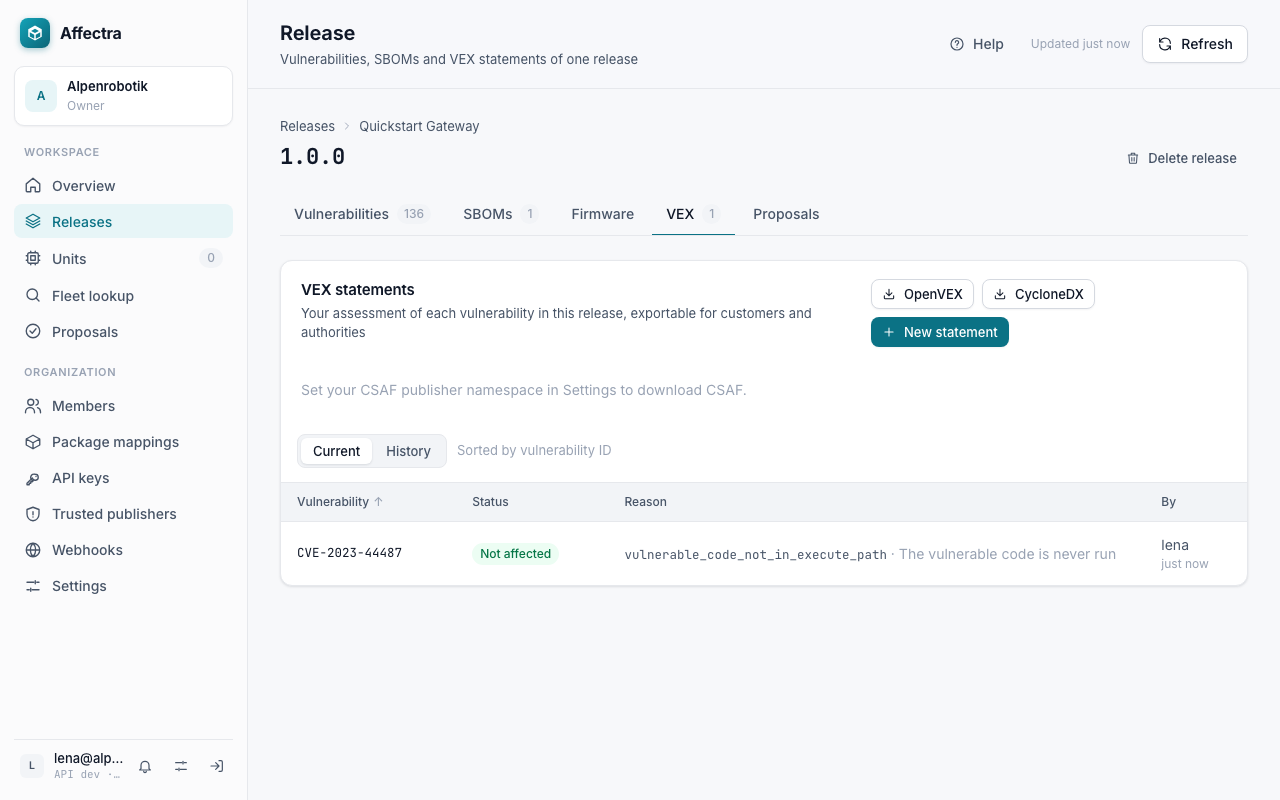
A statement is never edited. To change your mind, record a new statement for the same vulnerability. The old one stays in the history. Assess findings with VEX covers the other statuses, advisories that cover several CVEs, and statements that an AI assistant proposes and you decide.
- Upload from every build: GitHub Actions, or any other CI with the command you used.
- Send the statements to your customers: Export VEX.
- See what runs in the field: Your first unit.
- Ask an AI assistant about this release, and let it propose the next statements: Connect an AI assistant.
- See where each of these fits in your day to day: How Affectra fits your process.
When you are done with the tutorial, revoke the key if you do not need it again. The product Quickstart Gateway stays: a release with a VEX statement cannot be deleted, because statements are kept as evidence.